How to check Screen Time on iPhone
To check Screen Time on iPhone, open Settings, tap Screen Time, then tap See All App & Website Activity. Apple provides Day and Week summaries, app and category details, pickups, and notifications. If Share Across Devices is on, the report can include usage from other devices signed into the same Apple Account.
Last updated 2026-08-21
The App Store link is being confirmed. See how MoveFirst works below.
Where is the Screen Time report?
Open Settings, tap Screen Time, then tap See All App & Website Activity for the breakdown by app and category. Use the Week and Day controls to switch between summaries. This is the path in Apple's current iPhone guide, retrieved 21 August 2026.
What is the difference between Week and Day?
Apple's current guide describes separate Day and Week summaries and lets you move through earlier periods. It does not define every number shown in the Week interface as a universal total or average. Read the label beside the figure on your device and note which view is selected before comparing periods.
What do Pickups and Notifications actually count?
Apple says the activity summary shows how often you pick up your device and which apps send the most notifications. Its current guide does not define every event included in those counters. Use them as labeled signals in the report, not as a precise measure of every unlock, glance, or interruption.
Why doesn't the number match how the week felt?
First check whether Share Across Devices is on. Apple says that setting shares Screen Time settings and reports across devices signed into the same Apple Account, so the summary can include more than one device. Then open the app and category breakdown instead of comparing the headline figure with memory alone.
What does the number not tell you?
The report shows time by app and category, pickups, notifications, and the selected period. It cannot tell you why you opened an app or whether that use matched what you intended. Treat the numbers as a record of device activity, not an explanation of the reason behind it.
MoveFirst's own weekly view is built around that limit rather than against it: it records only whether you moved that day, never how long you spent anywhere else. Apple draws this figure. MoveFirst doesn't receive it.
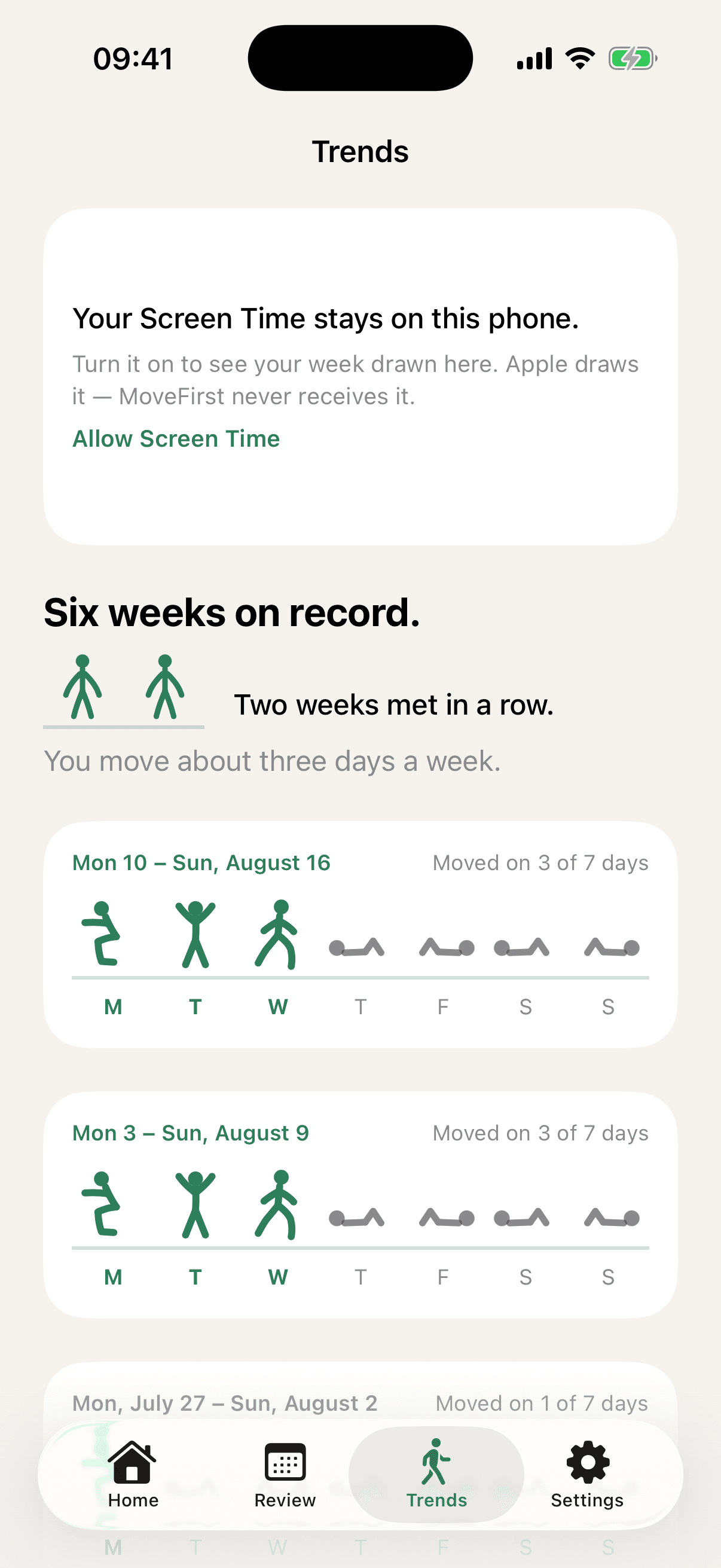
The App Store link is being confirmed. See how MoveFirst works below.
Common questions
- Is the Week figure always a total or an average?
- Apple's current guide calls Day and Week separate summaries but does not define every top-line Week value as a universal total or average. Read the label shown on your device and iOS version.
- Where do I switch between Day and Week?
- Open Settings, Screen Time, then See All App & Website Activity. Use the Day and Week controls in the activity summary.
- Do my iPad and Mac add to the same number?
- If Share Across Devices is on, Apple says Screen Time settings and reports are shared across devices signed into the same Apple Account. Turn it off when you want each device to keep separate settings and reports.
- How far back does the history go?
- Apple does not publish a fixed cutoff in the cited guide. It says you can swipe to see previous days and weeks, so use the history currently available on your device.
- Can I export it?
- Apple's current iPhone guide documents viewing Day and Week summaries in Settings; it does not document a built-in file-export step.
Sources
- Get started with Screen Time on iPhone
Checked 2026-08-21
Related guides
The App Store link is being confirmed. See how MoveFirst works below.
The App Store link is being confirmed. See how MoveFirst works below.