The Screen Time Passcode: What It Actually Locks
The Screen Time passcode is a four-digit code separate from your iPhone unlock code. When enabled, Apple says it must be entered before selected Screen Time settings can change. On your own device, you can later change or remove it; for a child's Screen Time, a parent or guardian can manage it through Family Sharing.
Last updated 2026-08-21
The App Store link is being confirmed. See how MoveFirst works below.
What is the Screen Time passcode?
The Screen Time passcode is a four-digit code you set in Settings, under Screen Time, then Lock Screen Time Settings. It isn't the same as the passcode that unlocks your iPhone, and it isn't your Apple Account password either — Apple's own instructions are explicit that a Screen Time passcode isn't the same as the passcode you use to unlock your device. Once it exists, it must be entered before any setting behind it can change.
What does the passcode actually lock?
A Screen Time passcode protects the Screen Time settings you select, including controls such as Downtime, App Limits, and Content & Privacy Restrictions. Apple documents the device passcode separately: it unlocks the iPhone itself. Turning off App & Website Activity switches off reporting, Downtime, App Limits, and Always Allowed together.
How do the four locks on an iPhone compare?
| Lock | Protects | Held by | Reopens with | Does not cover |
|---|---|---|---|---|
| Device passcode | The whole phone | Whoever set it up | Face ID, Touch ID, or the passcode itself | Screen Time settings, which run on their own separate code |
| Screen Time passcode | The Screen Time settings selected for protection | The device owner, or the Family Sharing organizer for a child's device | The current Screen Time passcode, or an Apple Account reset if Screen Time Passcode Recovery was set up in advance | The device lock screen |
| Downtime | A scheduled window where only allowed apps and calls work | Whoever holds the Screen Time passcode | The passcode, or by waiting for the schedule to end | Apps left on the always-allowed list |
| App Limits | A daily time budget set for a chosen app or category | Whoever holds the Screen Time passcode | The passcode, by requesting more time, or when the limit resets at midnight | Apps that were never given a limit |
Who can change it?
For your own individual Screen Time setup, anyone who knows the current passcode can change or remove it. Under Family Sharing, a parent or guardian can manage a child's Screen Time from their own device. A centrally managed device may follow an organization's settings instead, so an unfamiliar control is a reason to check with its administrator.
Why does a passcode you chose stop working as a limit?
A self-set passcode leaves the current code available to the same person who set the boundary. Apple provides a Settings path to change or remove it. That is a structural trade-off: the code protects selected Screen Time settings from casual changes, but it does not transfer control to another person.
What is the alternative to a code?
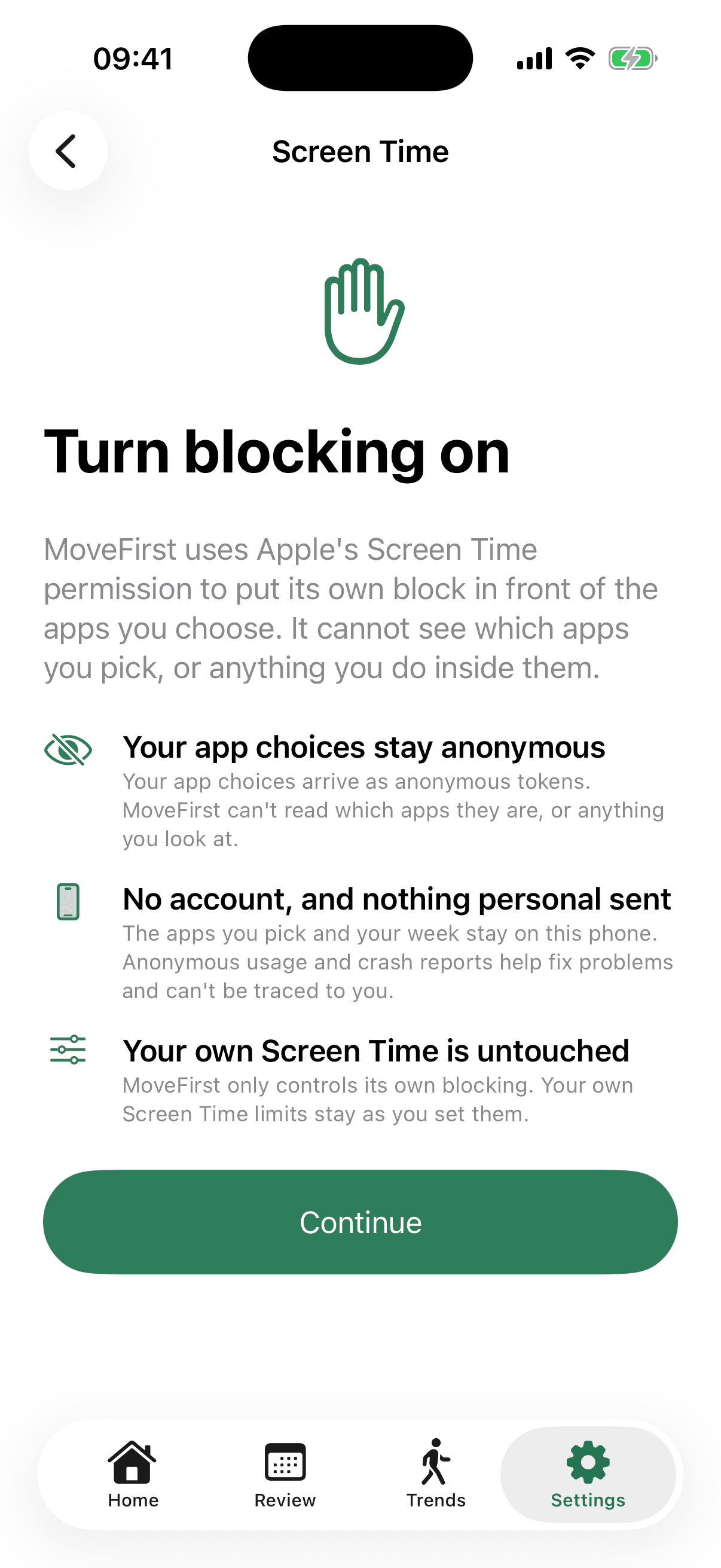
MoveFirst removes the code from the opening decision. The apps you choose are locked at the start of every day. A verified session can be camera-counted on your phone, with video never recorded, stored, or sent; step and saved-place routes are the fixed 8,000-step target or 30 minutes at a saved place. A rest day taken, the single emergency unlock, or the fixed duration ending can also open the day.
MoveFirst still has a way out on a genuinely bad day: one emergency unlock for the whole period, with the remaining count always shown. That isn't a code to lean on daily — it's used once, and then it's gone until the period ends.
What if you forget it?
Apple can help — but only if Screen Time Passcode Recovery was turned on beforehand, tied to your Apple Account. Reset it from Settings, then Screen Time, then Change Screen Time Passcode, using your Apple Account email and password instead of the old code. The full walkthrough, including what to do if the reset doesn't work, is in the related guide on forgotten Screen Time passcodes below.
The App Store link is being confirmed. See how MoveFirst works below.
Common questions
- Is the Screen Time passcode the same as my iPhone passcode?
- No. Apple treats them as two separate codes: one unlocks the device, the other unlocks Screen Time's own settings. Setting one doesn't set or change the other.
- Can I see my Screen Time passcode without resetting it?
- No. Apple's tools let you change, remove, or reset the passcode; they do not reveal the existing code. The documented reset uses the Apple Account linked for recovery.
- Does turning off Screen Time delete my usage history?
- Not according to Apple's own instructions. Turning off App & Website Activity switches off reporting, Downtime, App Limits and Always Allowed going forward — Apple doesn't describe it as erasing what was already recorded.
- Can someone else change my Screen Time passcode?
- A parent or guardian can manage a child's Screen Time through Family Sharing from their own device. Personal and centrally managed devices follow different controls.
- Does MoveFirst use a passcode?
- No. A locked day opens through one verified movement session, a rest day taken, the single emergency unlock, or the fixed period finishing — never a code.
Sources
- Create, manage, and keep track of a Screen Time passcode on iPhone
Checked 2026-08-21
- If you forgot the Screen Time passcode for an iPhone or iPad
Checked 2026-08-21
- Get started with Screen Time on iPhone
Checked 2026-08-21
- Block apps, app downloads, websites, and purchases on iPhone
Checked 2026-08-21
Related guides
The App Store link is being confirmed. See how MoveFirst works below.
The App Store link is being confirmed. See how MoveFirst works below.