How to Turn Off Screen Time on iPhone
To turn off Screen Time, open Settings, tap Screen Time, scroll down, and tap Turn Off App & Website Activity. Enter your Screen Time passcode if prompted. Apple says this disables reporting, Downtime, App Limits, and Always Allowed; its guide does not say that existing usage history is erased.
Last updated 2026-08-21
The App Store link is being confirmed. See how MoveFirst works below.
How do I turn Screen Time off?
Open Settings, tap Screen Time, scroll to the bottom, and tap Turn Off App & Website Activity. If a Screen Time passcode protects the settings, enter it when prompted. This is the path in Apple's current iPhone guide, retrieved 21 August 2026.
What turns off with it?
Apple says turning off App & Website Activity switches off reporting, Downtime, App Limits, and Always Allowed together. Its current guide does not state that existing history is deleted or that a later report restarts from zero. If you only want to change one control, use that control's own Screen Time page instead.
Can I turn off just one limit instead of all of it?
App Limits, Downtime, and Content & Privacy Restrictions each have their own Screen Time page. Review or remove an App Limit under App Limits. Turn Scheduled off under Downtime. Under Content & Privacy Restrictions, change only the relevant app, feature, purchase, web, or privacy setting. Apple's linked guides document those controls separately.
It's asking for a passcode I don't have — what now?
If you forgot a self-set Screen Time passcode, Apple provides a reset flow using the Apple Account linked when the code was created. A child's Screen Time may be managed through Family Sharing, while an organization may manage a supervised device. Use the matching route instead of assuming who set it.
Turning it off because it never worked?
If you are turning Screen Time off because its reversal path is too easy to reach, inspect that path directly. Apple's settings let an authorized person review or change App Limits and Downtime. A different boundary can instead change who holds the key or which action opens access.
MoveFirst puts that decision somewhere else. A verified session can be camera-counted on your phone, with video never recorded, stored, or sent; step and saved-place routes are the fixed 8,000-step target or a 30-minute saved-place dwell. A rest day taken, the single emergency unlock, or the fixed duration ending can also open the day. The duration is 2 weeks, 30 days, or 90 days and never renews on its own.
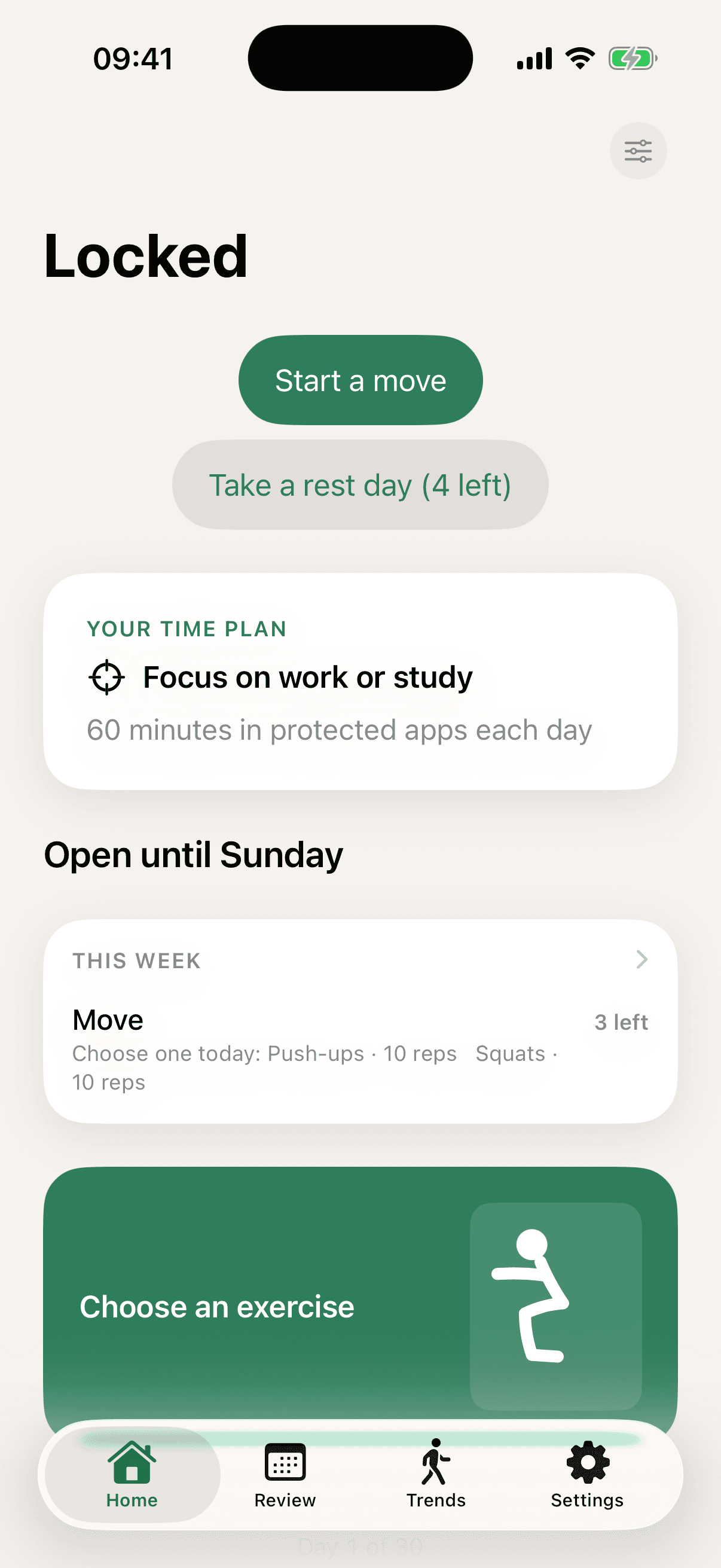
The App Store link is being confirmed. See how MoveFirst works below.
Common questions
- Does turning off Screen Time delete my usage history?
- Apple says turning off App & Website Activity disables reporting, Downtime, App Limits, and Always Allowed. Its current guide does not say that existing usage history is deleted, so this page does not make that claim.
- Can I turn it off for one app only?
- You can review or remove an individual App Limit under Settings, Screen Time, App Limits. That changes the selected limit instead of turning off App & Website Activity for the entire Screen Time report.
- What does Apple say happens to reporting?
- Apple says reporting switches off with App & Website Activity. Its guide does not promise what a later iOS update will do or describe turning the feature back on automatically.
- Does turning it off remove Downtime schedules?
- Turning off App & Website Activity disables Downtime along with App Limits, Always Allowed, and reporting. To change only the schedule, open Settings, Screen Time, Downtime, then turn Scheduled off.
- Can a Family Sharing organiser turn it off for me?
- A parent or guardian can manage a child's Screen Time through Family Sharing. Personal and centrally managed devices follow different controls, so check which setup the device uses before changing anything.
Sources
- Get started with Screen Time on iPhone
Checked 2026-08-21
- If you forgot your Screen Time passcode
Checked 2026-08-21
- Set schedules with Screen Time on iPhone
Checked 2026-08-21
- Block apps, app downloads, websites, and purchases on iPhone
Checked 2026-08-21
Related guides
The App Store link is being confirmed. See how MoveFirst works below.
The App Store link is being confirmed. See how MoveFirst works below.