A Screen Time Limiter That Opens on Movement
A Screen Time limiter puts something between you and an app. MoveFirst locks the apps you choose at the start of each day. The day opens after a verified movement session, a rest day taken, the single emergency unlock, or the fixed duration ending; access then runs to the next configured boundary.
Last updated 2026-08-21
The App Store link is being confirmed. See how MoveFirst works below.
What does setting it up actually involve?
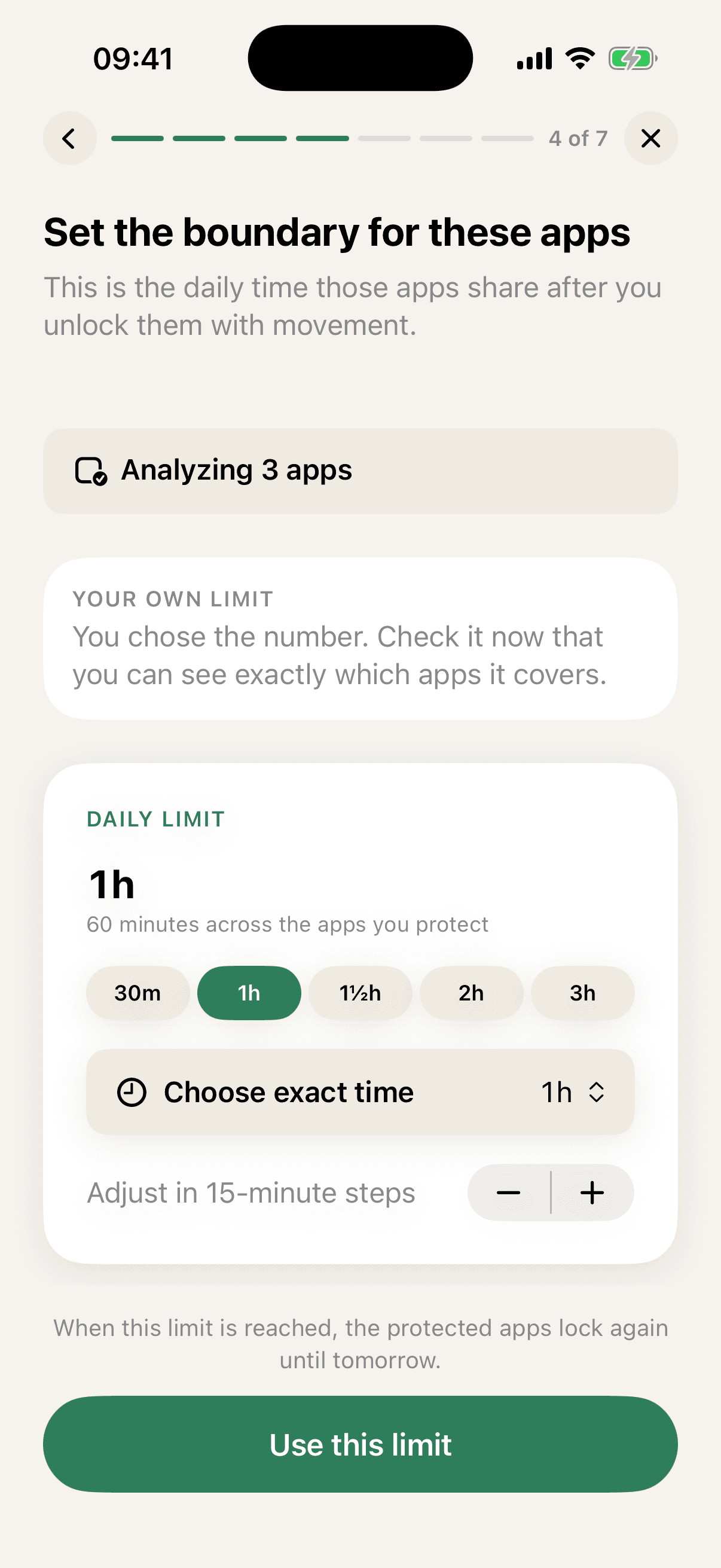
MoveFirst's setup runs seven screens, in this order: what you want your time back for, understanding your existing Screen Time, which apps to protect, the daily boundary those apps share, what you'll do before you can scroll, how long the period runs, and a review screen before it activates.
The second step can show a private, on-device summary of recent Screen Time to suggest a starting number. Apple draws that figure and MoveFirst does not receive it; MoveFirst stores only the boundary you confirm. Setup can be revisited later, although an active fixed duration determines when some changes take effect.
What does it ask permission for, and why?
Screen Time, individual authorization, is the permission that lets MoveFirst put its own lock in front of the apps you choose. MoveFirst stores Apple's opaque selection and calculates three counts (apps, categories, and web domains) without receiving readable app identities.
| Permission | When it's used |
|---|---|
| Camera | Only if a camera exercise is picked — reps counted live on your phone, never recorded, stored, or sent |
| Health | Only for the step route |
| Location | Only if you use a saved place |
| Notifications | For reminders you're free to turn off |
What is the daily boundary?
Once your day opens, the protected apps share one daily time budget, adjustable in 15-minute steps. MoveFirst's shipped wording for what happens next is exact: "When this limit is reached, the protected apps lock again until tomorrow." The boundary is the number confirmed during setup, and the apps close again when it is reached.
What are the ways back in?
Four things reopen a locked day, and only four: a verified movement session, a rest day taken, the one emergency unlock (its remaining count always shown, never hidden), or the period itself ending. Nothing else opens it.
What happens when a rule is no longer active?
When a MoveFirst rule is no longer active, the locking ends and your selected apps become available again. The app never keeps you locked out of your own phone.
The App Store link is being confirmed. See how MoveFirst works below.
Common questions
- Does it need an account?
- No. MoveFirst runs with no account, and nothing personal is sent.
- Can it see which apps I picked?
- No. MoveFirst stores Apple's opaque selection and calculates counts for apps, categories, and web domains without receiving readable app identities.
- What if I need a locked app urgently?
- One emergency unlock exists for the whole period, with the remaining count always shown on the lock screen — used once, not something to lean on daily.
- Which inputs do not use camera counting?
- Camera-counted sessions run on your phone, with video never recorded, stored, or sent. Step and saved-place inputs are the fixed 8,000-step target from Apple Health or 30 minutes at a saved place.
- Does the period renew?
- No. The 2-week, 30-day or 90-day period ends on its own and never renews.
Sources
- Get started with Screen Time on iPhone
Checked 2026-08-21
- Family Controls
Checked 2026-08-21
- FamilyActivitySelection
Checked 2026-08-21
Related guides
The App Store link is being confirmed. See how MoveFirst works below.
The App Store link is being confirmed. See how MoveFirst works below.