How to Reset Your Screen Time Passcode
To reset your Screen Time passcode, open Settings, tap Screen Time, then Change Screen Time Passcode. If you know the current code, you can replace or remove it. If you do not know it, use Apple's recovery steps with the Apple Account linked when the passcode was created.
Last updated 2026-08-21
The App Store link is being confirmed. See how MoveFirst works below.
Reset or recover — which one are you doing?
Reset means you know the current passcode and want a new one, or none at all — that's this page. Recover means you don't know the current code, a different job with a different route: the Apple Account recovery path covered in the related guide on a forgotten Screen Time passcode. Confusing the two wastes time, since resetting always asks for the code you're trying to replace.
This page is also only about the passcode. Resetting screen-time habits themselves, meaning cutting back on usage rather than managing a code, is a different question covered separately.
How do I turn the passcode off completely?
Go to Settings, tap Screen Time, scroll down, tap Change Screen Time Passcode, then select Turn Off Screen Time Passcode. Enter the current passcode to confirm. Apple's instructions remove the passcode in this flow; they do not direct you to delete App Limits, Downtime, or Content & Privacy Restrictions. Review those controls afterward if they matter to you.
What do I lose when I reset it?
| Item | Apple's documented step | What to verify afterward |
|---|---|---|
| The passcode itself | Replaced or removed | Confirm the new code works, or that the passcode control is off |
| App Limits | Not edited in the passcode flow | Open App Limits and review any limit you rely on |
| Downtime | Not edited in the passcode flow | Open Downtime and review its current schedule |
| Content & Privacy Restrictions | Not edited in the passcode flow | Open the relevant restriction and check its current value |
| Screen Time reporting | Not switched off in the passcode flow | Open App & Website Activity to confirm reporting is on |
Will my App Limits and Downtime survive?
Apple documents changing or removing the Screen Time passcode as a separate action from setting App Limits or Downtime. Its reset steps do not tell you to recreate those controls. Check the current settings afterward if you need confirmation on your device and iOS version.
What replaces the code if you didn't want to remove the limit — only the friction?
Removing the Screen Time passcode removes the code protecting those settings; it is not the same instruction as deleting every App Limit or Downtime schedule. If the issue is the kind of key rather than the limit itself, compare a boundary that opens on a different action.
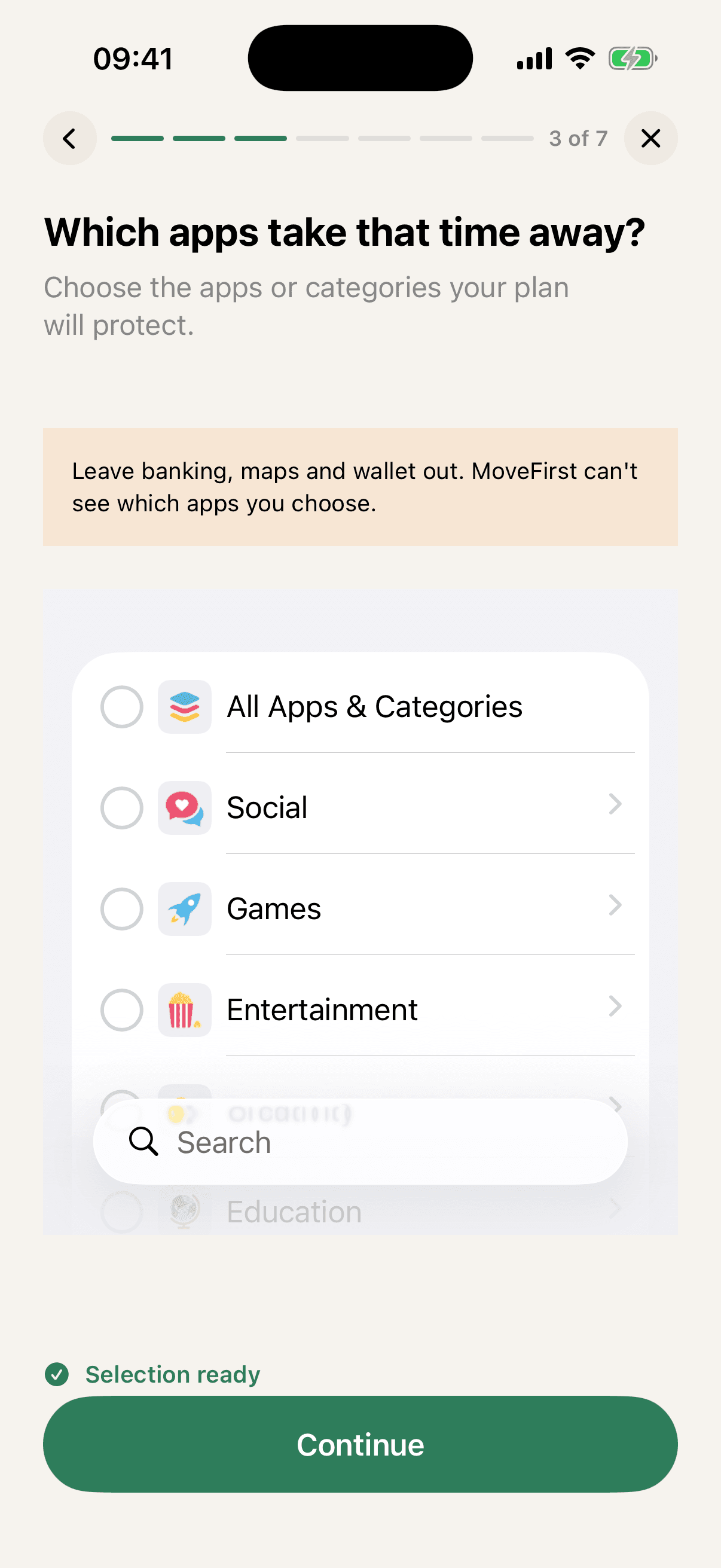
MoveFirst opens on a counted action instead of a code. A session can be camera-counted on your phone, with video never recorded, stored, or sent; step and saved-place routes are the fixed 8,000-step target or 30 minutes at a saved place. A rest day taken, the single emergency unlock with its count shown, or the fixed duration ending can also open the day. The duration is 2 weeks, 30 days, or 90 days and never renews on its own.
The App Store link is being confirmed. See how MoveFirst works below.
Common questions
- Does resetting the code turn off my limits?
- Apple documents resetting or removing the passcode separately from editing Downtime, App Limits, or Content & Privacy Restrictions. Review those settings afterward if you need device-specific confirmation.
- Can I reset it from a Mac?
- Yes. System Settings, Screen Time, has the same change-or-remove passcode controls Apple documents for iPhone, and it points you to the same recovery article if you've forgotten the code entirely.
- What if I forgot the current code?
- Use Apple's recovery option with the Apple Account linked when the passcode was created. If it is rejected, verify that it is the same account and use Apple's Get Suggestions route.
- What if Change Screen Time Passcode is greyed out?
- Apple's cited instructions do not diagnose every greyed-out state. Check whether the device is managed or the account is controlled through Family Sharing, then use Apple Support for the exact device state.
- Can a parent reset a child's passcode?
- Yes. Apple documents selecting the child under Screen Time on the parent or guardian's device, then changing the child's Screen Time passcode with the adult's device passcode.
Sources
- Create, manage, and keep track of a Screen Time passcode on iPhone
Checked 2026-08-21
- If you forgot the Screen Time passcode for an iPhone or iPad
Checked 2026-08-21
- Set, change, or remove a Screen Time passcode on Mac
Checked 2026-08-21
Related guides
The App Store link is being confirmed. See how MoveFirst works below.
The App Store link is being confirmed. See how MoveFirst works below.